Limited-time free

Free Online Image to Image AI

Upload one reference image and describe the version you want to see. Try a different style, setting, or composition, then preview your result and download it as a PNG.

Upload one reference image and describe what you want to change.

PNG, JPG, JPEG, WEBP · 1 image

0 / 5000

Preview

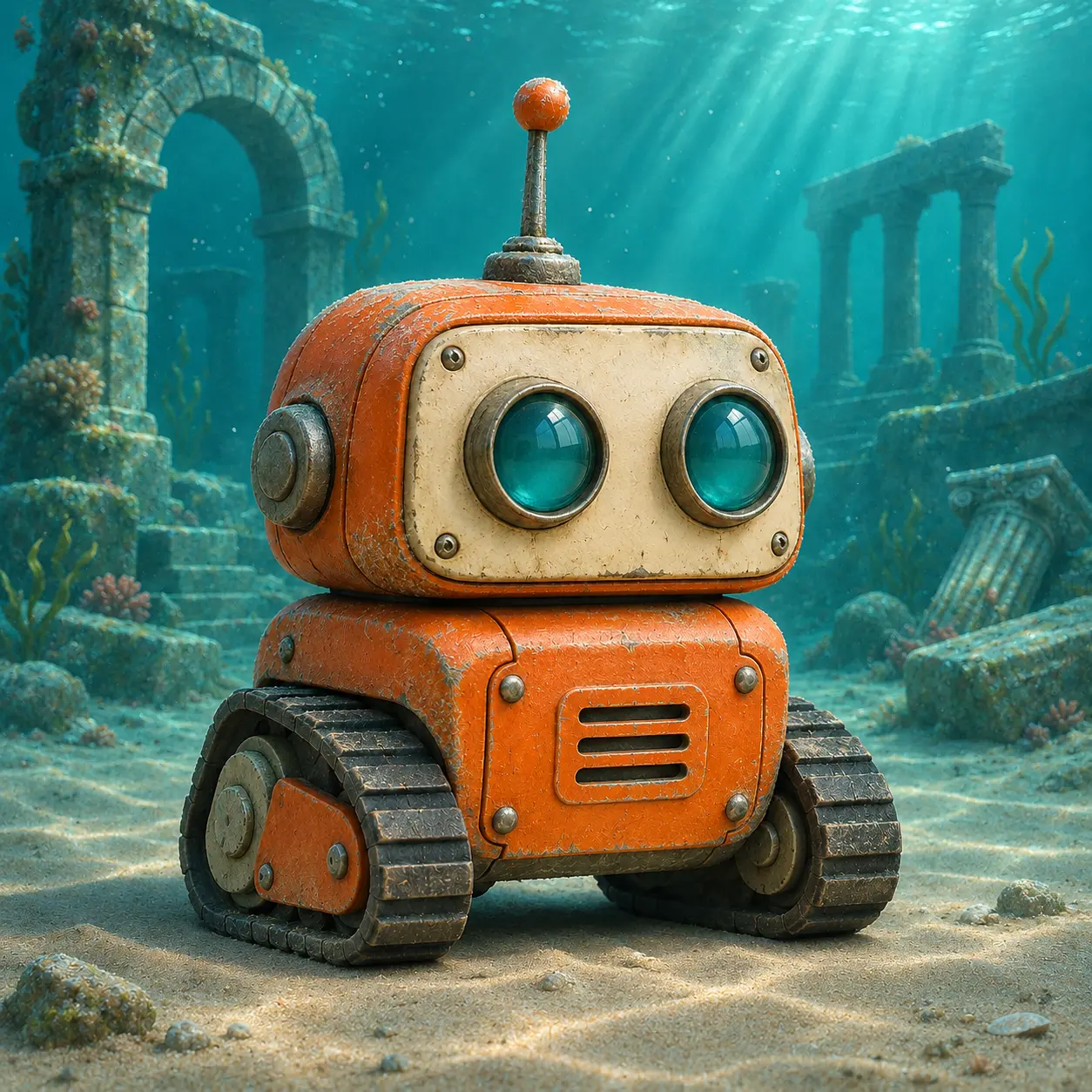
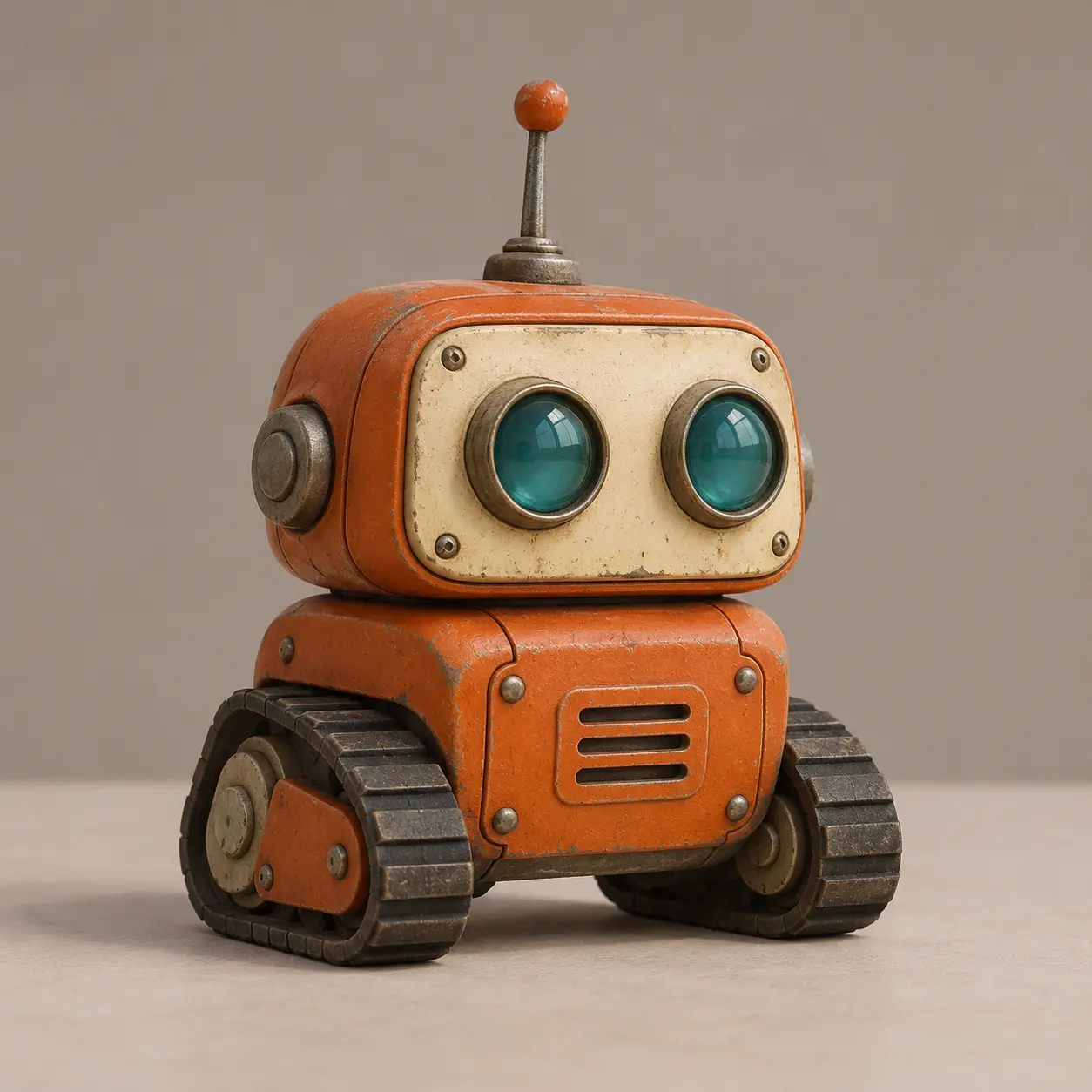
Orange toy robot amid underwater stone ruins in the image to image AI previewOrange toy robot on a studio tabletop, the reference for this image to image AI example
BeforeAfter

Generate a New Image from a Reference

When you already have the subject in mind, start with the photo, sketch, or illustration that shows it best. The AI image generator uses that reference and your prompt to create a new version. If you want to keep the camera angle in a sketch of a storefront, say so in the prompt before asking for a different time of day.
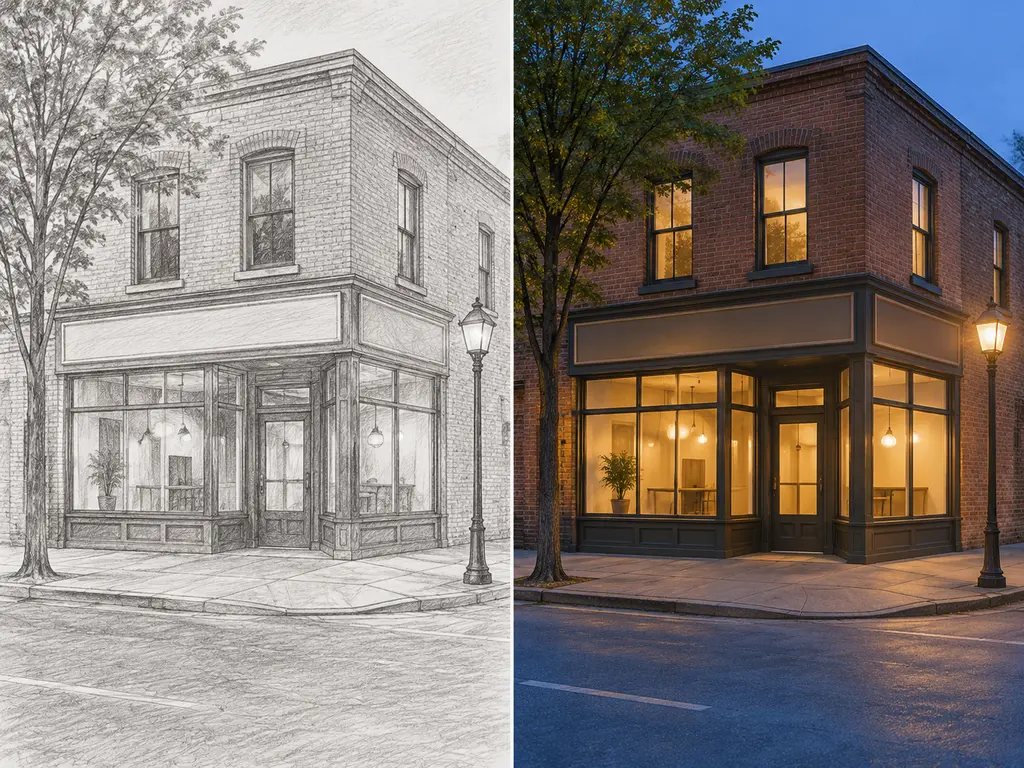
Corner storefront shown as a pencil sketch and a warmly lit scene at dusk

Restyle a Photo with Image to Image AI

Try a different visual treatment for a picture you already like. Ask for a watercolor illustration, a vintage film look, or a graphic novel style. Name one or two visual cues, such as soft paper texture or bold ink outlines, and mention which parts of the original composition matter to you.

Three pears and a blue bowl shown as a photograph and a watercolor painting

Reimagine a Scene Around Your Subject

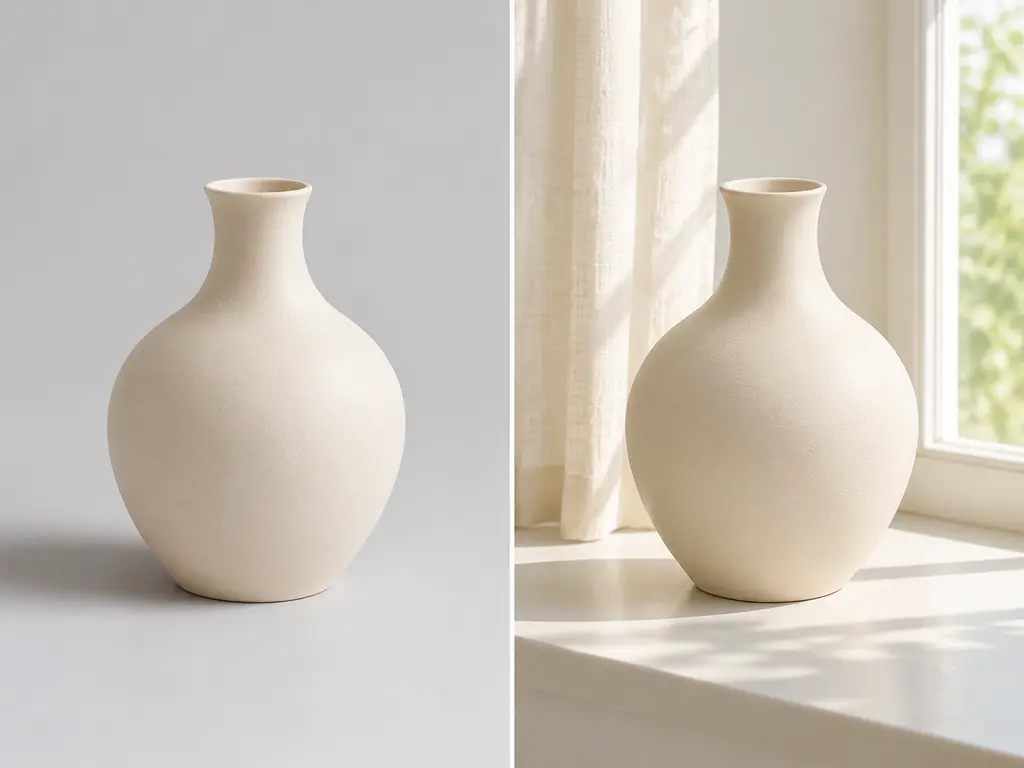
A clear source image lets you explore what the same idea might look like in a different setting. Start with a studio photo of a ceramic vase and ask for a sunlit windowsill with linen curtains. Specify the vase shape and angle you want to carry through, then check the result against your reference.

Ivory ceramic vase against a gray studio backdrop and on a sunlit windowsill

Tell the AI What to Change and What to Keep

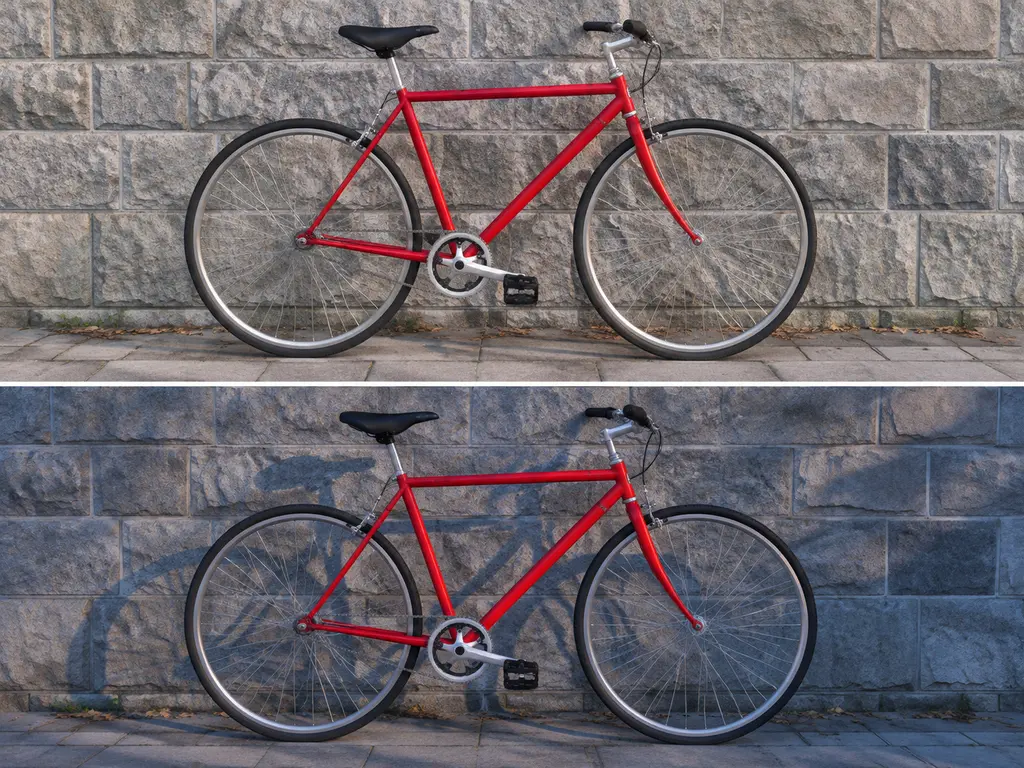
A useful image to image prompt pairs a specific change with a detail you want the new image to retain. For example, “Use cool evening light and keep the bicycle’s red frame and side-on view.” If a result misses an important detail, name it more precisely and generate another version from the same reference.

Red bicycle against a stone wall in daylight and cool evening light

Choose an Aspect Ratio for Your Next Image

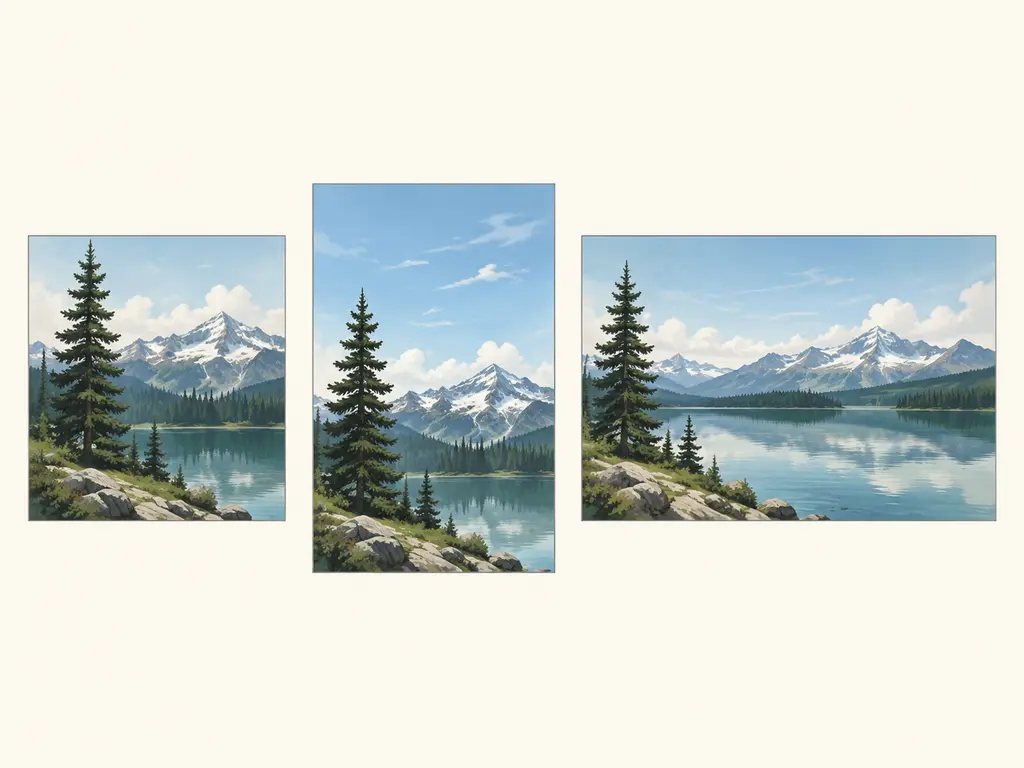
Set the output shape before you generate. Choose 1:1 for a square post, 4:5 for a portrait feed image, or 16:9 for a wide header. If you need room for a headline, ask the AI to place the subject away from that area and check the framing in the preview.

Evergreen beside a mountain lake framed in square, portrait, and widescreen layouts

How to Use the Image to Image AI Generator Online

  1. 1

    Upload a reference image

    Choose one JPG, JPEG, PNG, or WebP file. The generator uses that image as the visual starting point, so pick a reference that clearly shows the subject or layout you care about.

  2. 2

    Describe the new version and generate

    Write what you want to change and which details matter in the result. Choose an aspect ratio, sign in, and select Generate Image. The AI uses your reference and prompt to create a new image.

  3. 3

    Review and download your PNG

    Open the result in the preview and check the details that matter to your project. Download the PNG when you find a version you want to use. For another option, adjust the prompt and generate again.

What You Can Create with Image to Image AI

Speckled ceramic mug on a wooden table beside a window

Product Photo Variations for Shop Owners

Use a photo of your handmade mug to preview a seasonal product image. Try it on a breakfast table with warm morning light, then compare the mug’s shape, glaze, and markings with the original before using it.

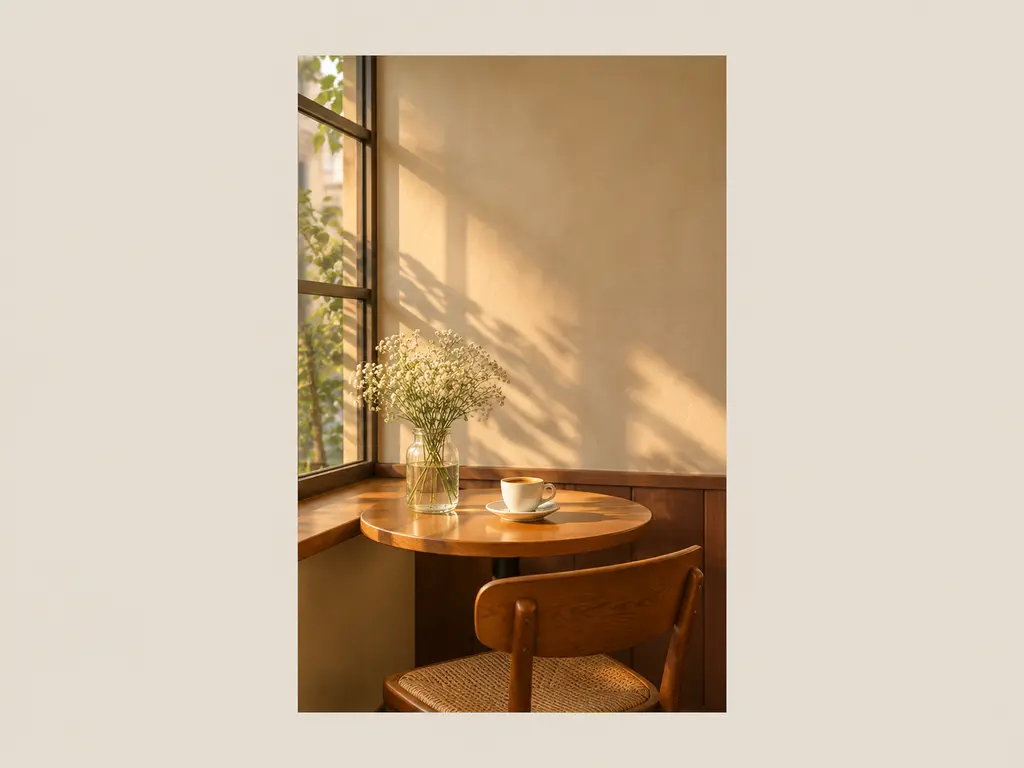
Vertical café image with an espresso cup by the window and open wall space above

Vertical Cover Images for Social Creators

Start with a café photo and request a vertical cover with room at the top for a title. Use the preview to check how the subject sits in the frame before adding your text.

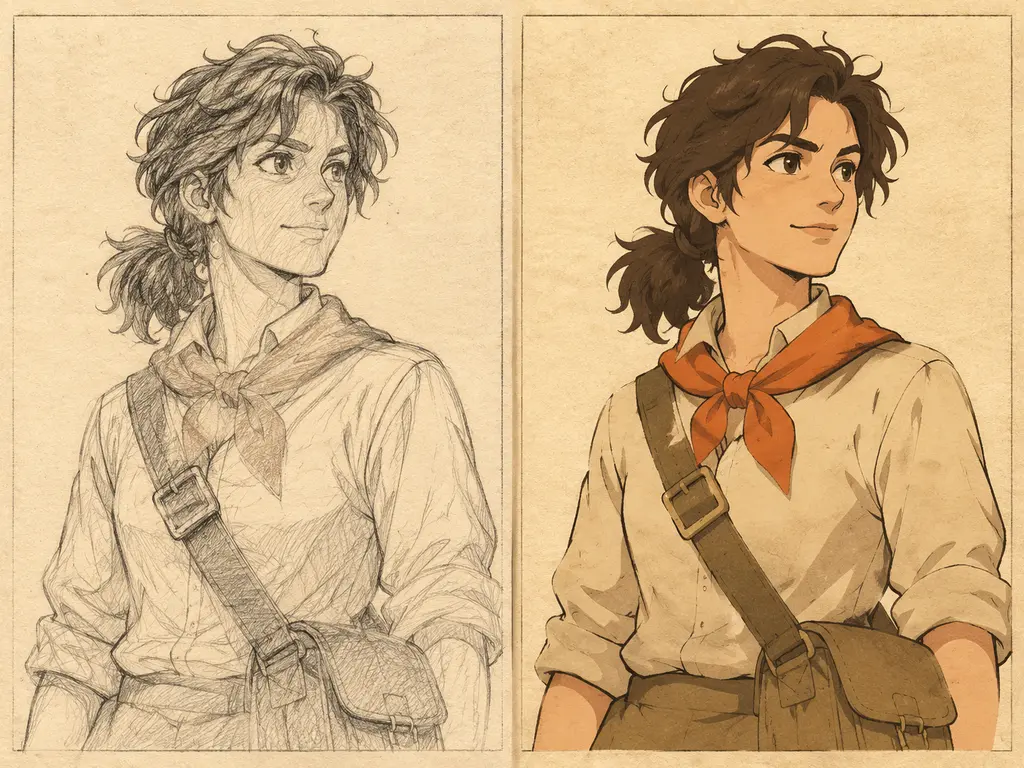
Pencil sketch of an explorer beside a color illustration with an orange scarf and satchel

Character Style Studies for Illustrators

Upload one character sketch to explore how the same design might look in flat comic colors or pencil shading. Call out a signature accessory or silhouette so you have a detail to compare across versions.

Living room with sage-green walls, a cream sofa, and a terracotta rug

Room Concepts for Home Projects

Start with a photo of your living room to explore a different palette before buying paint or furniture. Describe the wall color and materials you have in mind, and name the doors, windows, or furniture you want in the new concept.

Illustration of a person with an umbrella passing a brick building on a rainy street

Newsletter Illustrations from Everyday Photos

Turn a photo from a neighborhood walk into an editorial illustration for a newsletter. Ask for a limited color palette and a simple background to suit the space next to your headline.

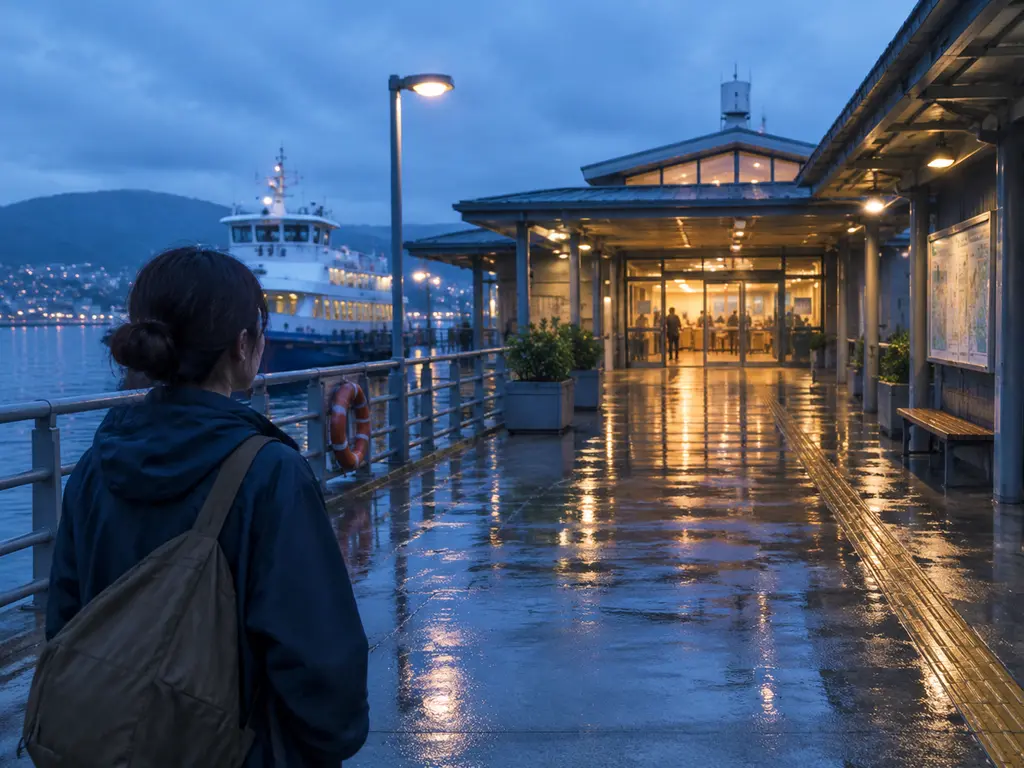
Person looking toward a lit ferry terminal across rain-slick pavement at blue hour

Storyboard Frames for Video Creators

Use a sketch or a location photo to shape the look of a single scene. Once you have a still you like, turn the finished image into a video clip by describing how the subject or camera should move.

Why Use Veo Online for Image to Image Generation?

One image is enough to start

Use the photo, sketch, or illustration you already have as your starting point.

Give directions in plain language

Describe the scene, lighting, color, or style you want in an ordinary sentence.

Set the output shape before you generate

Choose a square, portrait, or landscape ratio based on where the image will appear.

Try it with free daily generations

Sign in to use your free daily image generations.

Review the details before saving

Check the framing and the parts of your reference that matter to you in the preview.

Download a PNG for the next step

Save your result to your device and bring it into your design, presentation, or video workflow.

Image to Image AI FAQ

Image to image AI generates a new still image from an existing image and a text prompt. The reference gives the AI a visual starting point, and the prompt describes your intended changes. You may also see this workflow called img2img.