Limited-time free

Free Gemini Omni 1.2 Flash Video Generator

Turn a prompt with an optional reference image into a video with native audio. Gemini Omni 1.2 Flash supports 3–15-second clips and upscaling to 4K.

Write a prompt, optionally add one image to guide the motion.

JPG, JPEG, PNG, WEBP · max 10MB

0 / 5000
Preview

Your generations will appear here

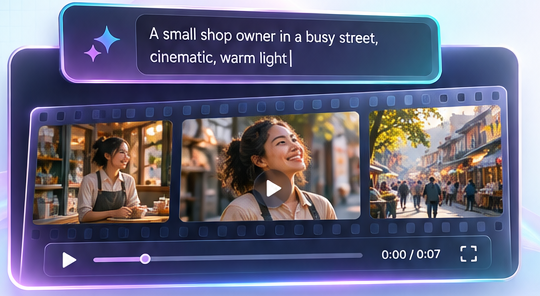
Gemini Omni Flash 1.2 AI Video Generator concept showing a text prompt and video scene frames

Gemini Omni 1.2 Flash Text to Video

A text prompt is enough to begin. Describe who or what appears, what changes during the shot, where it happens, and how the camera moves. Add a line of dialogue or an ambient sound when it matters. For example, a small shop owner could describe a close-up of a product, a slow camera pullback, and the sound of a busy store. If you want to compare another model with the same brief, create videos from text prompts with Veo.
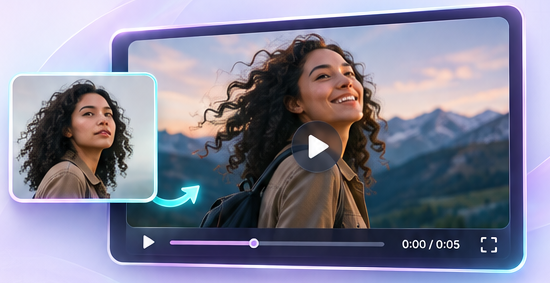
Gemini Omni 1.2 Flash image-to-video concept with a portrait as the starting frame

Image to Video from One Reference Image

When you already have a photo or illustration, upload one reference image and describe what should move. A product shot can become a short reveal; a character illustration can gain a gesture or camera move. The image guides visual details while your prompt directs the action and sound. Review the finished clip before publishing it, especially when a detail in the source image must stay exact. You can also animate an image with Veo for a different model workflow.

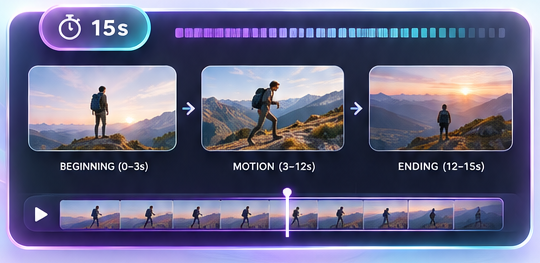
15-second video storyboard concept with a beginning, movement, and ending

3–15 Second Gemini Omni Videos

Gemini Omni 1.2 Flash supports clips from 3 to 15 seconds in one-second increments. Use a brief setting for a single product reveal or camera move, and give a longer scene room for a clear beginning, action, and ending. Keep the prompt focused rather than packing several unrelated ideas into one clip, then review the result before using it in an ad or post. If you need supported first-and-last-frame or multi-reference workflows, explore Veo 3.1 video generation.

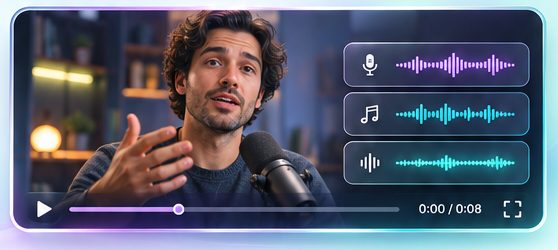
Video and audio generation concept showing a speaker and sound waveforms

Video and Native Audio in One Generation

Sound is part of the generated scene. Include the dialogue, ambience, or effects you want in the same prompt as the visual direction: footsteps on gravel, a quiet cafe, or one spoken line. If a scene should have no music or dialogue, say so plainly. This makes the brief more useful for a social post, lesson opening, or product concept, but listen to the output and check spoken words before sharing it.

What You Can Create with Gemini Omni 1.2 Flash

Explore ways to turn a prompt or image into a Gemini Omni video for a post, ad, or lesson.

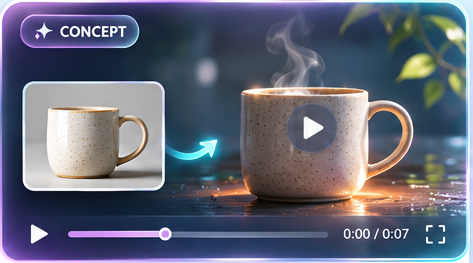
Product photo-to-video teaser concept with a coffee mug and steam

Product Teasers from a Photo

A small shop owner can start with one product image and ask for a slow turn or close-up reveal. The clip becomes a draft for a launch post or an ad concept to review.

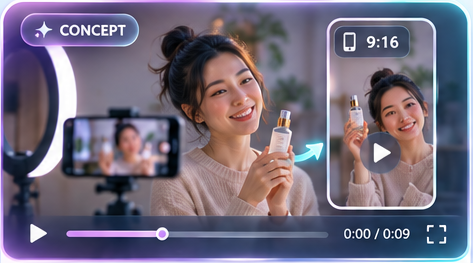
Vertical social video concept showing a creator and a 9:16 product clip

Vertical Social Video Ideas

A creator can write a short hook and choose 9:16 for a vertical scene. Keep the action focused so the result has room to work as a Reel or Short concept.

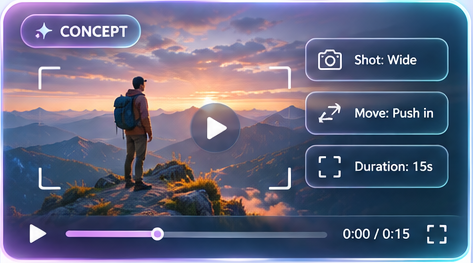
Cinematic video concept with a hiker at sunset in the mountains

Cinematic Scene Concepts

An independent filmmaker can describe a location, subject, and camera path before a shoot. A 15-second clip gives the team a visual direction to discuss.

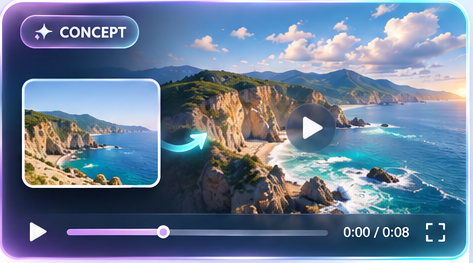
Travel photo animation concept showing a coastal landscape in motion

Travel Photos in Motion

A traveler can upload a landscape photo and ask for gentle clouds, moving water, or a slow camera push. Review the new motion before using it in a recap.

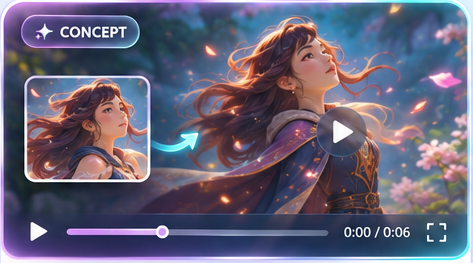
Character illustration-to-video concept with a fantasy character in motion

Character Illustration Clips

An illustrator can animate one character image with a simple gesture and a short sound cue. Use the clip to test how a design might feel in motion.

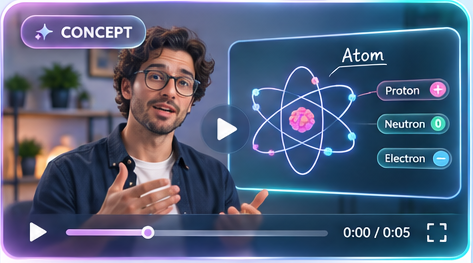
Short explainer video concept showing a presenter and an animated atom

Short Explainer Openings

A tutor can describe one clear visual idea and a brief spoken line for a lesson opener. Check any factual details and dialogue before showing the clip to learners.

How to Create a Gemini Omni 1.2 Flash Video Online

Start with a prompt or one reference image, set the aspect ratio, then generate and review your video.

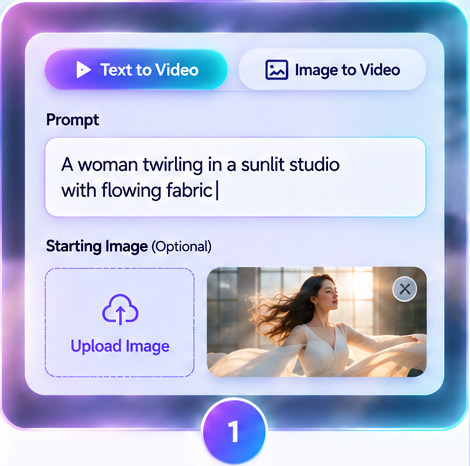
  1. Video generator interface concept showing a text prompt and optional starting image

    1. Add a prompt or image

    Describe your scene, movement, camera, and sound. Add one reference image if you have a look in mind.

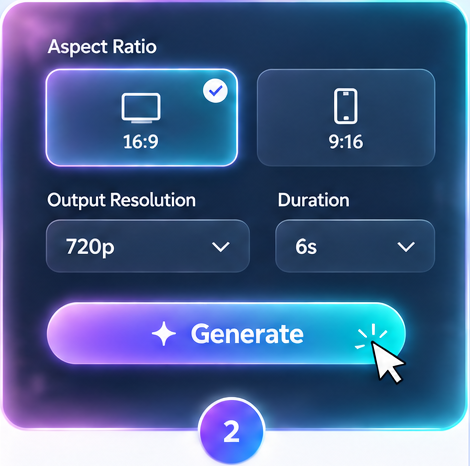
  2. Video settings illustration with aspect ratio, resolution, and duration controls

    2. Choose a format and generate

    Choose 16:9 or 9:16, then generate a Gemini Omni 1.2 Flash video with audio.

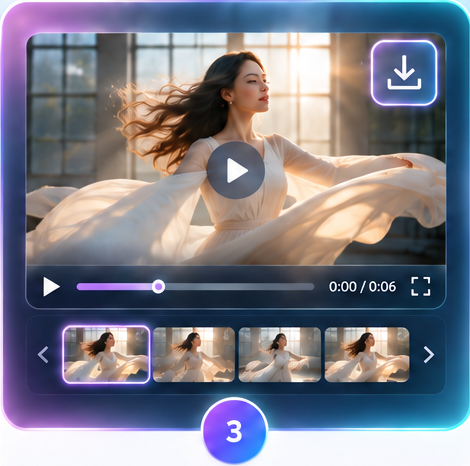
  3. Video preview interface concept with playback and download controls

    3. Review and download

    Check motion, framing, and sound, then download the result you want to keep.

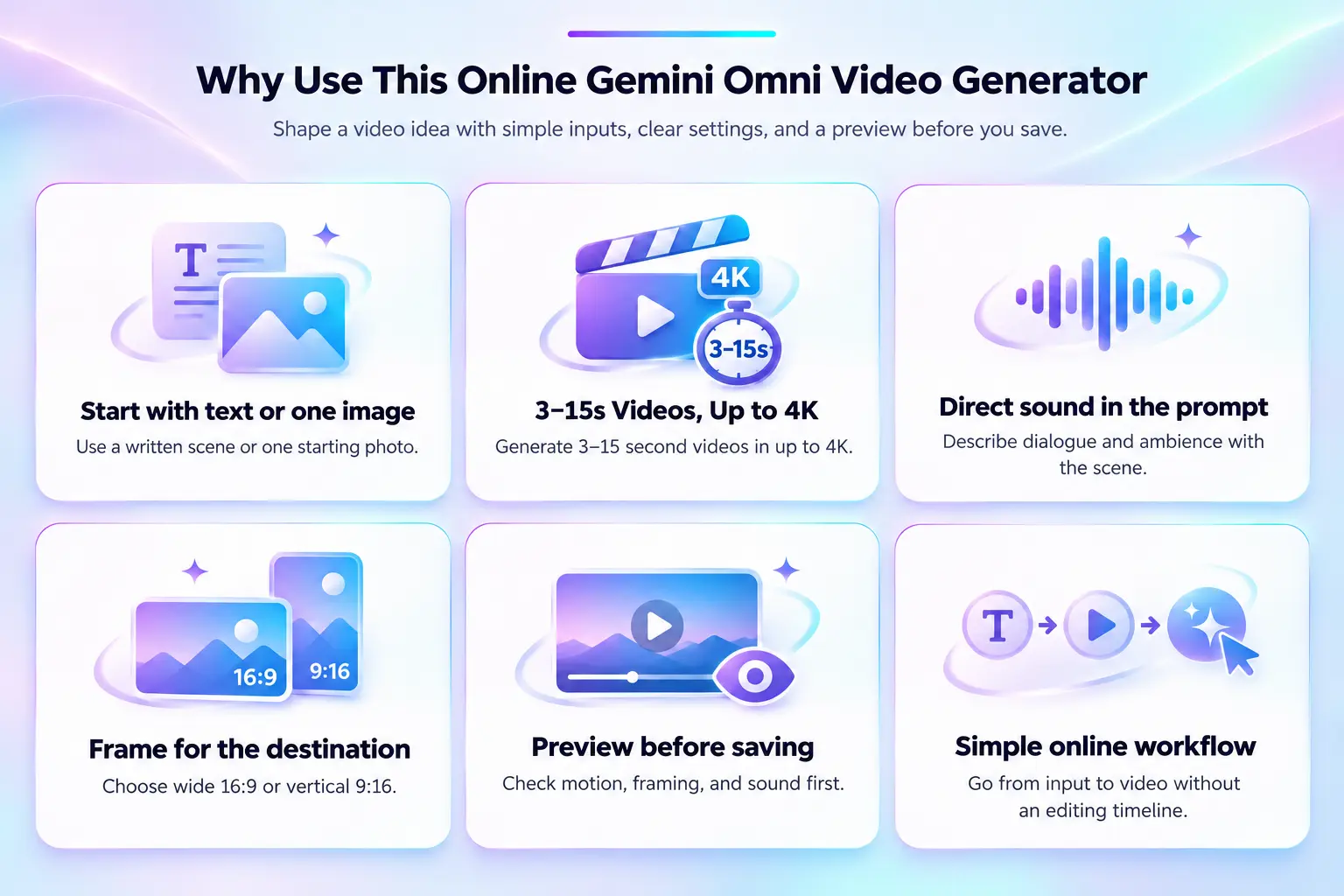
Why Use This Online Gemini Omni Video Generator

Shape a video idea with simple inputs, clear settings, and a preview before you save.

Start with text or one image

Use a written scene or one reference photo.

3–15s Videos, Up to 4K

Gemini Omni 1.2 Flash supports 3–15 second clips and can upscale finished videos to 4K.

Direct sound in the prompt

Describe dialogue and ambience with the scene.

Frame for the destination

Choose wide 16:9 or vertical 9:16.

Preview before saving

Check motion, framing, and sound first.

Simple online workflow

Go from input to video without an editing timeline.

Gemini Omni 1.2 Flash and Free Video Generator FAQ

Yes. Start with a text prompt and optionally add one reference image. The free allowance is up to 3 video generations per user per day across Veo Online's video generation pages.