Free Veo AI Image to Video Generator Online

Upload a photo, product image, or character design, describe how it should move, and create a downloadable video clip from your starting frame.

Write a prompt, optionally add one image to guide the motion.

JPG, JPEG, PNG, WEBP · max 10MB

0 / 5000
Preview

Your generations will appear here

Veo AI Image to Video Examples

See how a source image and a focused motion prompt can become a product, character, or scene clip.

Product Video Ads

Luxury Lipstick UGC Ad

Reference images

Reference images 1

Prompt

A beauty creator showcases luxury lipstick in a blush studio, with consistent identity, macro product shots, glossy lips, and soft lighting.

1 / 2

Turn Images into Veo Video Clips

Image to video works best when the first frame already contains the product, person, or composition you want to preserve.

Start with the Frame You Want to Animate

Start with the Frame You Want to Animate

The Veo AI image to video generator begins with your uploaded image. Use a clear product shot, photo, illustration, or character design when the opening composition matters more than inventing a new scene from text.
Describe the Motion, Not the Entire Image Again

Describe the Motion, Not the Entire Image Again

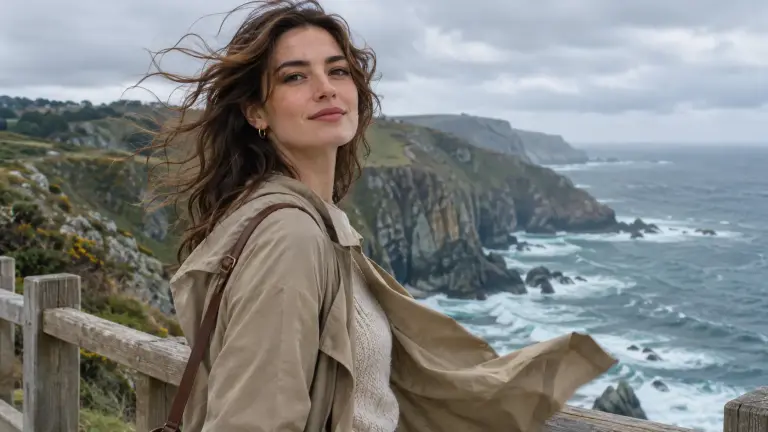
Explain what changes after the starting frame: the subject walks, hair moves in wind, liquid splashes, or the camera tracks closer. This keeps the prompt focused on the movement that turns a still image into a video.

Guide the Camera and Atmosphere

Guide the Camera and Atmosphere

Add camera movement, pacing, lighting, mood, and sound direction when they matter to the result. Available settings vary by model, so choose only the duration, ratio, and resolution currently shown in the generator.

Ways to Use the Veo AI Image to Video Generator

Upload an image when the subject and composition are ready, then use the prompt to direct the next moment.

Product Photo Motion

Turn a product still into a short reveal, close-up, or lifestyle moment by directing the object movement and camera path.

Character Design Animation

Start with an approved character image and describe a gesture, expression, or simple action that fits the existing design.

Travel and Nature Photos

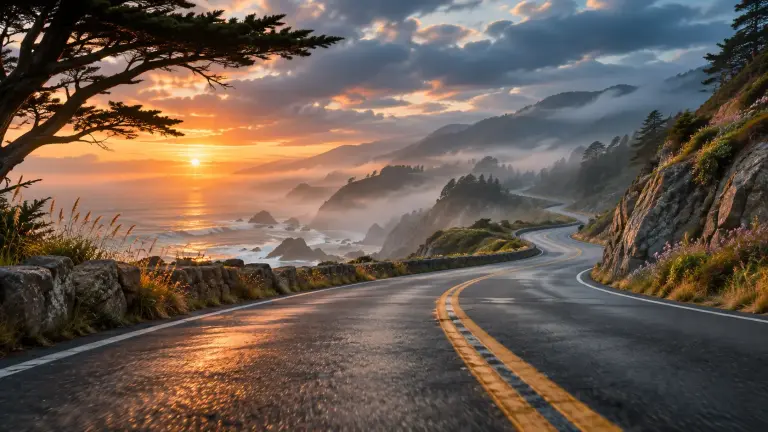
Add subtle environmental motion to a landscape, street scene, or travel image with a clear camera and atmosphere instruction.

Social Video Concepts

Create an image-led social video concept from a product, portrait, or illustration for a post or creative test.

How to Use the Veo AI Image to Video Generator

Begin with one image, then use the prompt to tell the video what should happen after that frame.

  1. 1

    Upload a starting image

    Add a JPG, JPEG, PNG, or WEBP image that contains the product, person, or scene you want to animate.

  2. 2

    Describe the motion

    Explain the action, camera movement, lighting, mood, and any sound direction that helps define the next moment.

  3. 3

    Generate and download

    Choose the available settings, create the clip, then download the finished video when generation is complete.

Veo AI Image to Video Generator FAQ

Upload a starting image, then write a prompt that describes the action, camera movement, lighting, mood, and any details that should remain important in the result.

Animate the Image You Already Have

Upload a clear starting frame, describe one focused movement, and build the next version from the clip you receive.