Limited-time free

Free AI Photo Editor Online

Upload a photo and describe what you want to change. Review the AI edit and download your result. Each user gets up to three free photo edits a day.

Upload one reference image and describe what you want to change.

PNG, JPG, JPEG, WEBP · 1 image

0 / 5000

Preview

Colorized close-up portrait with red lipstick in the AI Photo Editor previewBlack-and-white close-up portrait used as the AI Photo Editor reference
BeforeAfter

Edit Photos with AI Using Text Prompts

Start with the photo you already have. In the online AI photo editor, write what needs to change and name any details you want to keep. A single, specific instruction gives the AI a clearer task. For a first pass, try “Warm up the light on the table and keep the plate and food colors as they are.”

Fig toast photo comparison showing warmer light on the wooden table

Change a Photo Background with AI

If the setting draws attention away from your subject, describe a backdrop that fits where the photo will appear. For a portfolio portrait, you could ask for a warm gray studio backdrop and specify that the pose and framing should stay the same. Check the edges around hair, clothing, and shadows before you use the result.

Portrait comparison with a blurred room on the left and a warm gray backdrop on the right

Ask AI to Remove or Replace Objects in Photos

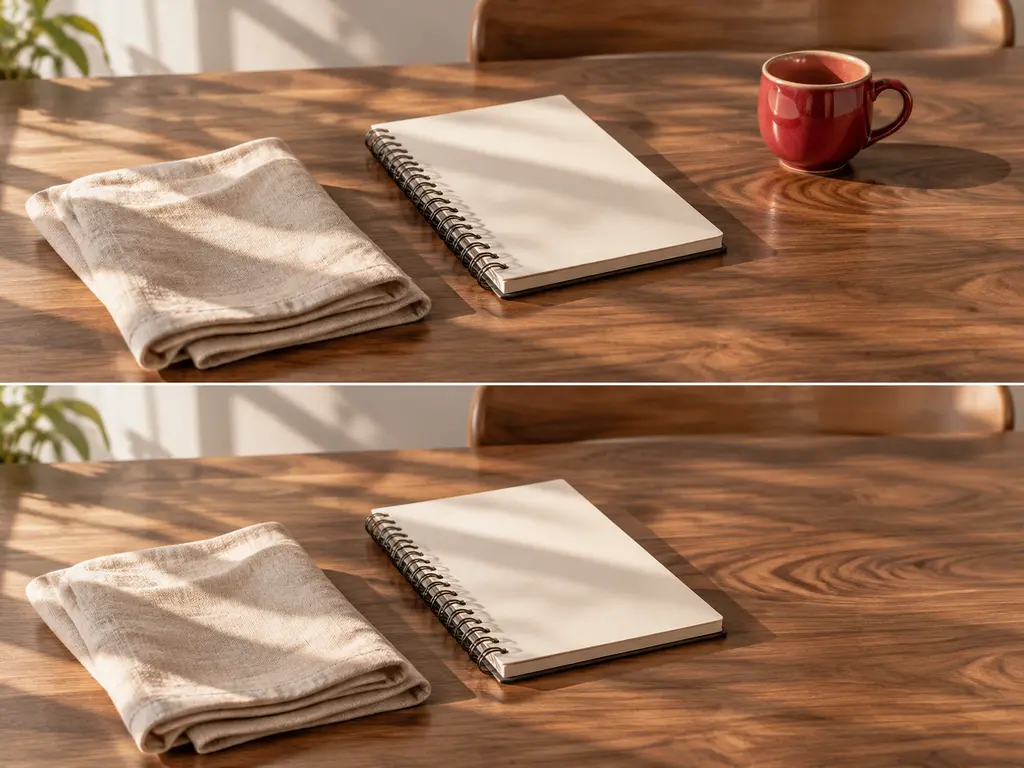
When a small distraction dominates the frame, identify it by its location and describe what should fill the space. Try “Remove the red cup on the right and continue the wood grain underneath.” If you want to swap a prop, name the replacement and explain how it should sit in the scene.

Wooden table before and after removing a red mug next to a notebook

Guide AI Portrait Edits with Specific Details

Use your original portrait to preview a different outfit or retouch a small area. Describe the change, then call out details that matter to you, such as the expression, pose, or camera angle. Review the face and hands at full size before choosing a portrait to share.

Portrait comparison showing the same pose in an olive overshirt and a charcoal cardigan

Try New Lighting and Styles for Your Photos

Describe how you want the light or color to feel. Soft window light can be a starting point for a portrait, while cooler shadows might suit a street photo. If the first result shifts colors you wanted to keep, name them in a more focused prompt and compare the next version. To explore a different style or setting, create a new image from your reference.

Blue bicycle against a stone wall in warm daylight and cool dusk tones

How to Edit a Photo with AI Online

  1. 1

    Upload your photo

    Choose a photo where the subject and the area you want to edit are easy to see. The editor uses that photo as the starting point for the edit.

  2. 2

    Describe the change and generate

    Write a short prompt that names the change and any details you want to preserve. Submit it to generate an edited version of your photo.

  3. 3

    Review and download

    Check the edited image for the changes you requested and the details you wanted to keep. Download the result you want to use, or refine one instruction and try again.

What You Can Create with an AI Photo Editor

Online shop product photo of a cream ceramic mug on a pale stone surface

Product Photos for an Online Shop

Give a maker's product photo a quieter setting for a listing refresh. Ask for a simple surface and review the label, shape, and color against the original before publishing.

Travel cover photo of a hiker walking toward coastal cliffs at sunset

Cover Images for Social Posts

Give a weekend photo a consistent color mood for the cover of a travel recap. Ask for muted tones around the subject and check that key details still read on a small screen.

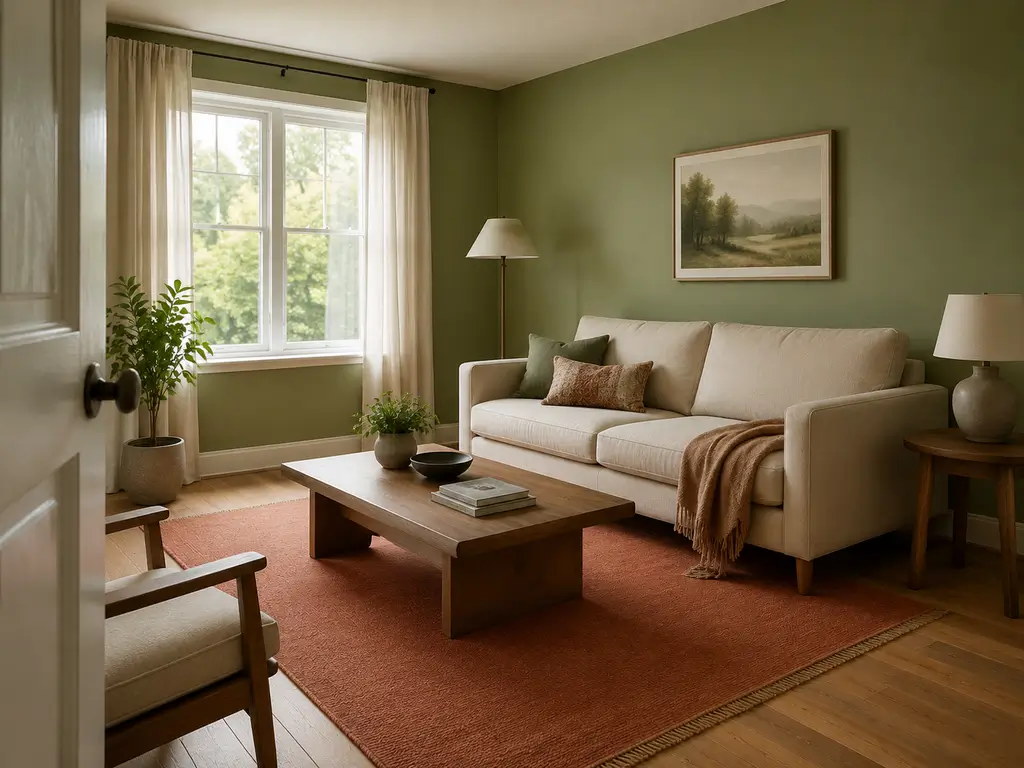
Living room color preview with sage green walls and a terracotta rug

Room Ideas Before You Redecorate

Use a photo of your room to preview a wall color or see how a different rug might look. Keep the current layout in the prompt so you can assess the idea against the space you have.

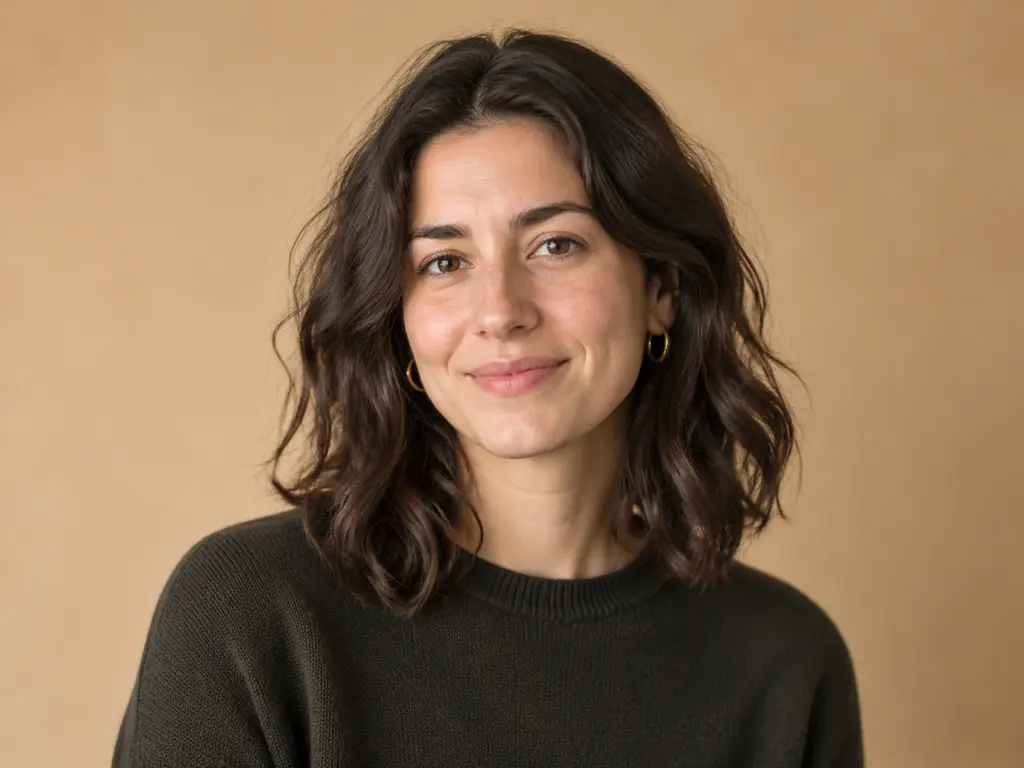
Speaker profile portrait in soft light against a warm neutral backdrop

Portraits for Profile Pages

Prepare a portrait for a speaker bio, team page, or portfolio. Try softening a harsh shadow, then check that the edited image still looks like the person in the source photo.

Two family picnic photo prints showing a faded yellow cast and a more neutral color version

Scanned Photos for a Family Album

Try a focused edit on a faded scan, such as reducing a color cast in one area. Compare it with the original before adding the edited version to a family album.

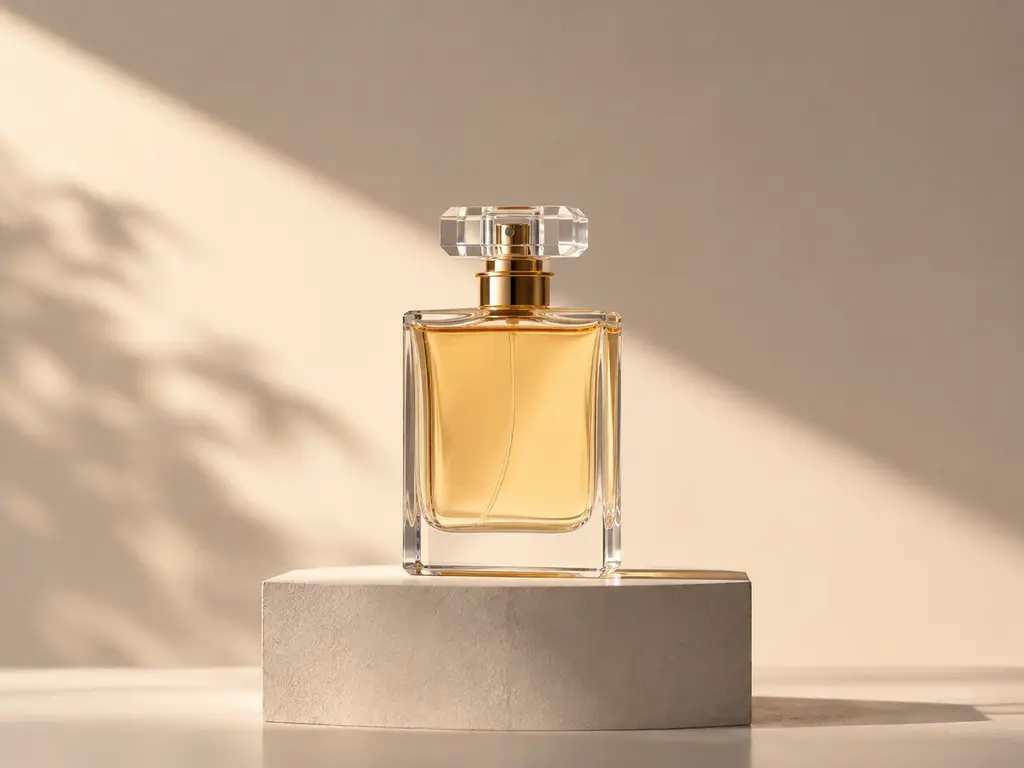
an unbranded glass perfume bottle on a small plinth in a clean studio

Starting Images for Short Videos

Prepare a clear opening image for a product teaser or a travel recap. Once the framing looks right, turn your edited photo into a short video and describe the motion you want.

Why Use Veo Online for AI Photo Editing?

Start with a photo you know

Use your own image as the visual reference for the edit.

Write the edit in plain English

Describe the subject, the area to change, and the result you want in your own words.

Guide the details you want to keep

Name the features that matter to you, like the color of a product or the framing of a portrait.

Try up to three generations a day

Each user gets up to three free photo generations daily, with a separate allowance for video generation.

Review before you save

Inspect the result and refine the instruction if an important detail needs another pass.

Download the edited image

Save the selected result for your post, listing, portfolio, or next project.

Free AI Photo Editor FAQ

Yes. Each user can generate up to three photo edits for free per day. The photo editor and video generator have separate allowances.