Free Veo AI Text to Video Generator Online

Write a scene, choose the settings available for your model, and turn a text prompt into a downloadable video clip without uploading a starting image.

Write a prompt, optionally add one image to guide the motion.

0 / 5000
Preview

Your generations will appear here

Veo AI Text to Video Examples

Open a real prompt, see the resulting clip, then use it as a starting point for your own scene.

Cinematic AI Videos

POV City Time Freeze

Prompt

A POV time-freeze walk through a busy city street, with floating debris, frozen crowds, visible hands, and explosive time release.

1 / 3

Create Veo Videos from Text Prompts

A useful text-to-video prompt gives the model a clear scene to build: what appears, what changes, and how the viewer should experience the shot.

Start with a Scene, Not a Blank Timeline

Start with a Scene, Not a Blank Timeline

The Veo AI text to video generator starts with your written direction. Name the subject, action, setting, visual style, and mood so the first generation has enough detail to become a usable short clip. Use text when you are exploring a scene that does not yet exist as an image; if the opening look is already set, start with the Veo AI image to video generator.
Describe Motion and Camera Direction

Describe Motion and Camera Direction

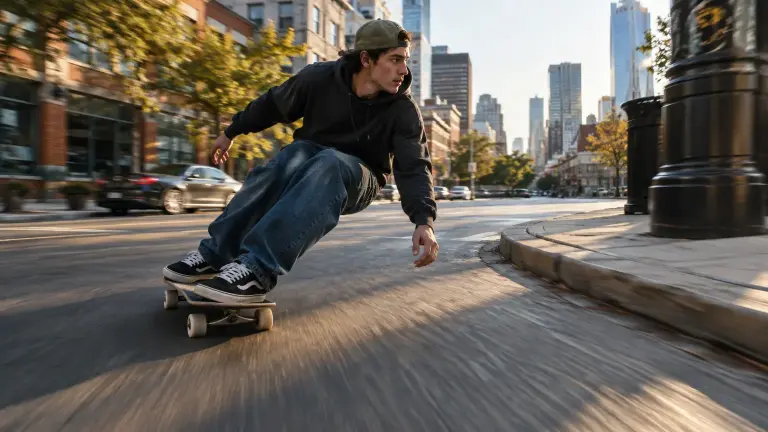
Tell the model what changes during the shot: a person turns, a product rotates, rain starts, or a camera pushes in. A focused motion instruction keeps the prompt practical for trailers, social concepts, product ideas, and visual experiments.

Add Sound or Dialogue When It Matters

Add Sound or Dialogue When It Matters

If sound is important to the scene, describe ambience, sound effects, music cues, or a short spoken line in the prompt. Available audio behavior depends on the selected model, so review the current model settings before generating.

Move from Prompt to Downloadable Clip

Move from Prompt to Downloadable Clip

Choose the available duration, aspect ratio, and resolution, then create the video and review the result. When you want a working reference before writing from scratch, browse the Veo prompt and example library and adapt a real scene.

What You Can Create with Veo Text to Video

Use a text prompt when the setting, action, or visual direction starts as an idea rather than a finished image.

Cinematic Scene Concepts

Draft an establishing shot, trailer moment, or mood piece by describing the location, subject, movement, and camera language.

Social Video Ideas

Turn a concise hook and visual action into a social video concept, then refine the next version based on the result.

Product Storyboards

Describe a product reveal, environment, and camera move before a shoot or edit exists, so you can test a visual direction early.

Character and Dialogue Moments

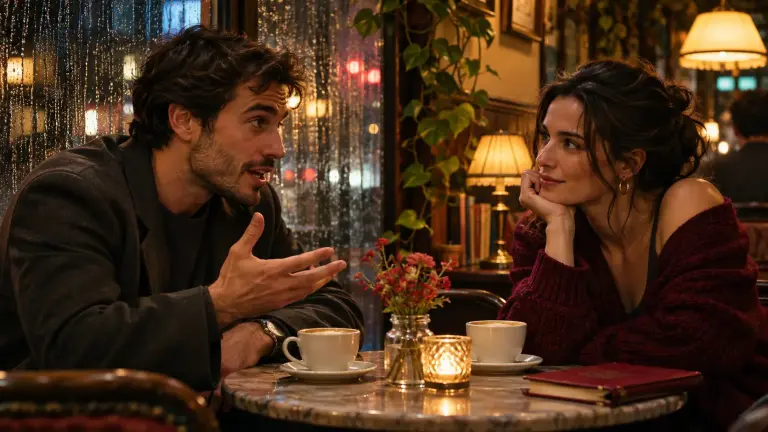
Write a short character action with the setting and spoken line that define the moment, then check the selected model's available settings.

How to Use the Veo AI Text to Video Generator

Start from a written idea and keep each instruction focused on what must appear and move in the shot.

  1. 1

    Write the scene

    Describe the subject, action, setting, camera movement, visual style, and any sound or dialogue that matters.

  2. 2

    Choose available settings

    Select a model and the supported duration, aspect ratio, and resolution that fit the clip you want to make.

  3. 3

    Generate and download

    Create the clip, review the completed result, and use Download to save the video to your device.

Veo AI Text to Video Generator FAQ

Write a prompt that describes the subject, action, setting, camera direction, and style. Select the available model settings, then generate the clip and download it when it is complete.

Turn Your Next Written Idea into a Veo Video

Start with a clear scene, then adjust the next prompt from what you see in the first clip.