Free Veo3.1 AI Video Generator Online

Turn a scene brief, a product image, or a set of visual references into a short Veo 3.1 video. Choose a supported model and settings, then review and download the result.

Write a prompt, optionally add one image to guide the motion.

JPG, JPEG, PNG, WEBP · max 10MB

0 / 5000
Preview

Your generations will appear here

Create Short Videos from Text Prompts

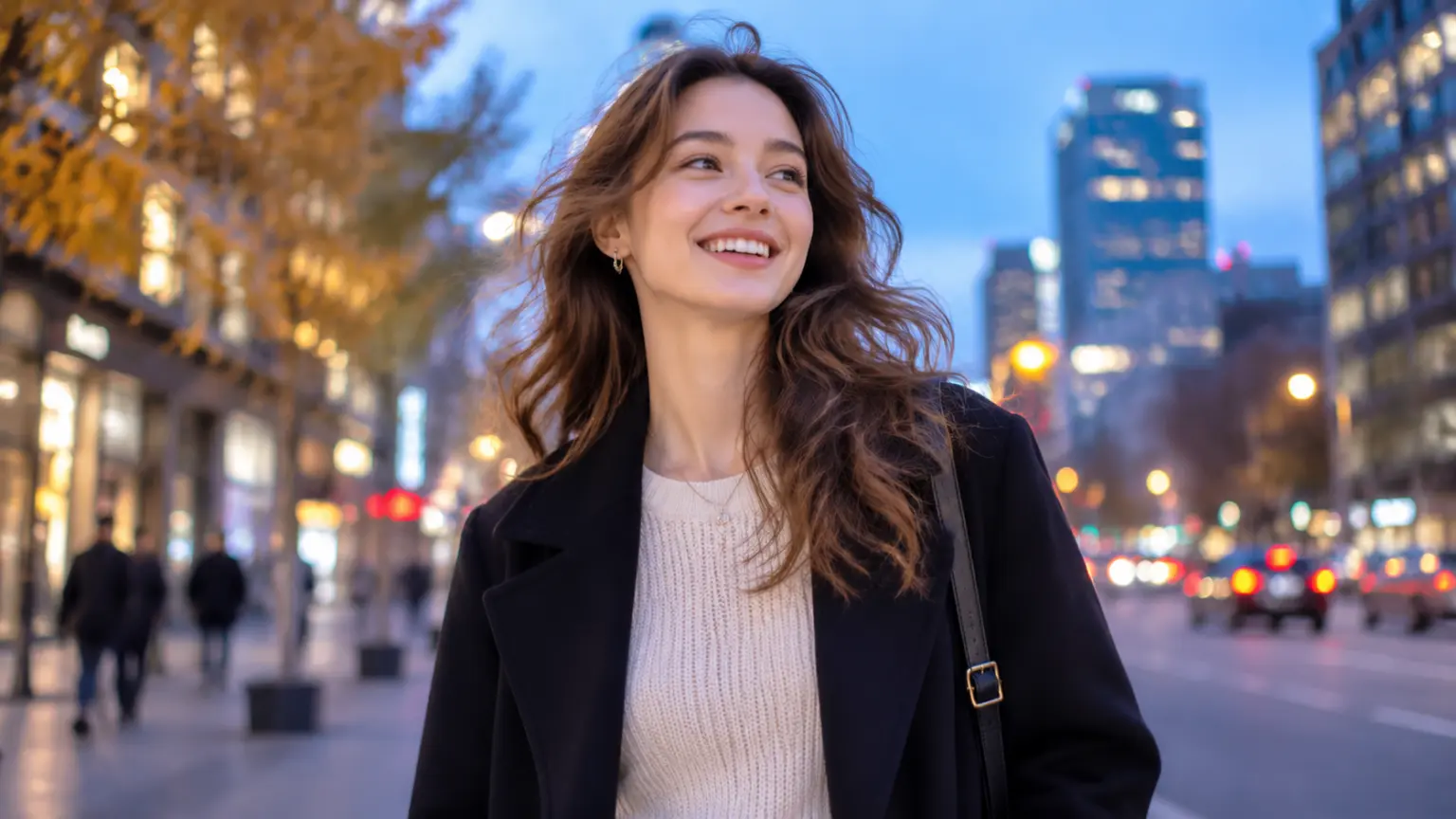
Start with a plain-language scene description when the idea is clear but no visual asset exists yet. Describe the subject, action, location, camera movement, lighting, and mood so the generated clip has a useful creative brief. A text-led workflow suits opening shots, social concepts, short story moments, and early product-ad directions that need a fast visual draft. For a prompt-only starting point, create a video from text.

Animate Images and First to Last Frame Ideas

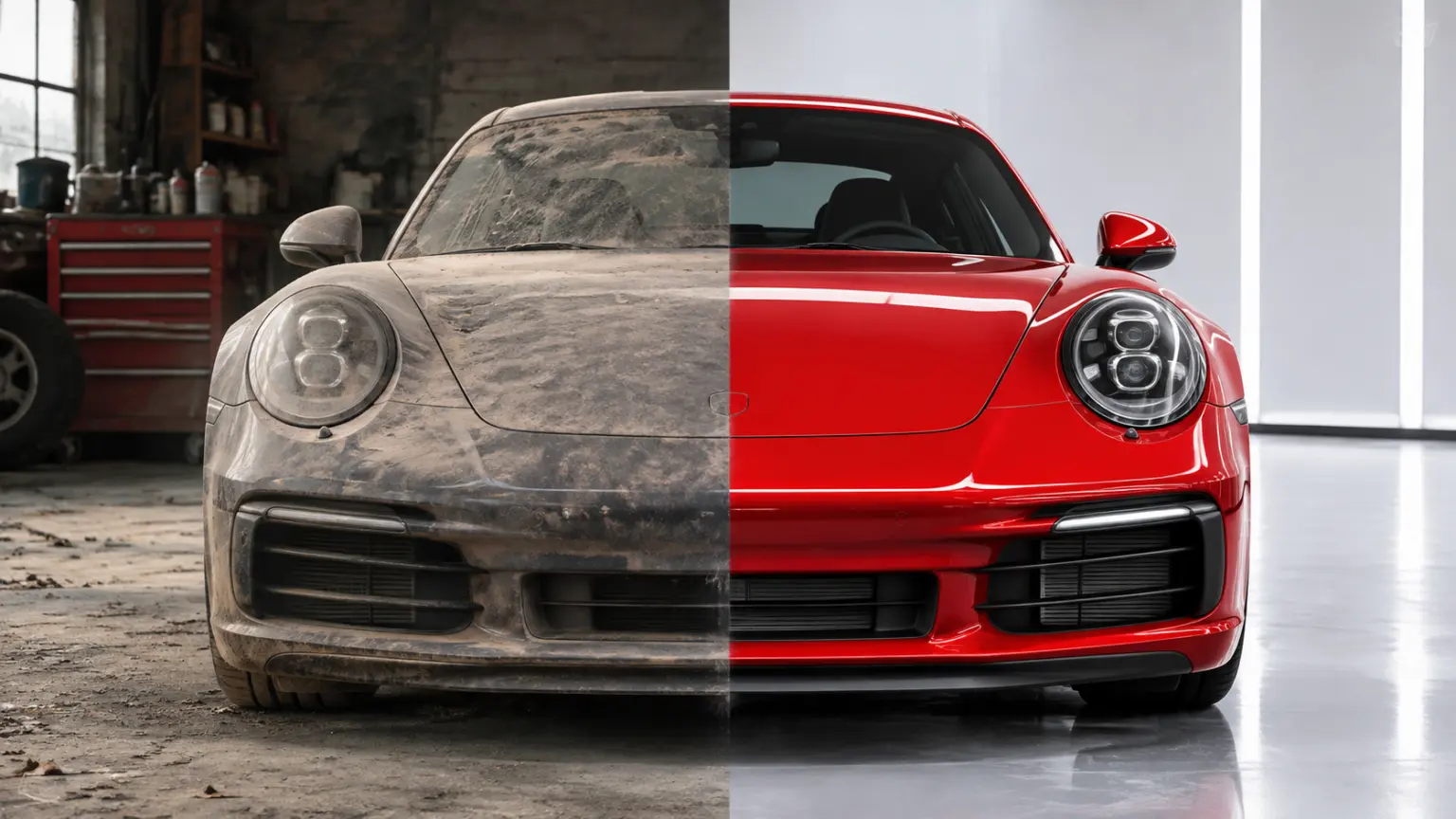
Use an image when the opening composition matters more than inventing a scene from scratch. For a controlled transition, add a first frame and an optional last frame in a supported Veo 3.1 workflow, then explain how the scene should move between them. This makes a product reveal, a before-and-after transformation, or a planned camera move easier to direct. If one image is all you need, animate a photo with Veo.

Guide Visual Direction with Reference Images

When a character, product, composition, or visual style needs a stronger starting direction, choose a workflow that supports reference images. Veo 3.1 Fast and Lite support up to three reference images in the current generator. Name the important visual details in the prompt, then let the reference assets guide the next short clip. If one reference image is enough, try Gemini Omni 1.2 Flash as another model option.

Choose a Veo 3.1 Model for the Next Clip

Choose a Veo 3.1 Model for the Next Clip

Choose Veo 3.1 Fast for flexible everyday ideas and reference-image work, Veo 3.1 Quality for text or first-and-last-frame direction, and Veo 3.1 Lite for testing variations. Available controls depend on the selected model and input mode, so the generator keeps the next action visible before you submit a video. For Veo 3 and Veo 2 alternatives, compare the Veo models.

Veo 3.1 FastVeo 3.1 QualityVeo 3.1 Lite

Set Format Generate and Download Online

Select a supported duration, aspect ratio, and resolution for the model you choose, then generate the clip from the same online workspace. Use 16:9 for web and landscape video, or 9:16 for vertical publishing. When the task is complete, review the result and download the finished video to your device.

How to Use Veo Online AI Video Generator

  1. 1

    Add your prompt or image

    Write the scene you want to create, upload an image, or add frames or reference images when the selected workflow supports them. The generator uses those inputs to prepare the right video request.

  2. 2

    Choose the available controls

    Select the Veo model, input mode, duration, aspect ratio, and resolution shown for that workflow. These choices define how the system processes the video request.

  3. 3

    Generate review and download

    Submit the request, review the completed clip, and download the result to your device. If the direction needs refinement, adjust the prompt or inputs before creating the next version.

What You Can Create with an AI Video Generator

Cinematic Story Scenes

Cinematic Story Scenes

Turn a written beat, camera cue, and atmosphere into a short scene for a trailer concept, mood piece, or visual story test.

Product and Ecommerce Video Clips

Product and Ecommerce Video Clips

Animate a product photo or describe a lifestyle moment for a product reveal, storefront visual, or short paid-social concept.

Vertical Social Video Ideas

Vertical Social Video Ideas

Use a 9:16 setup to create short creative drafts for Reels, Shorts, and TikTok-style publishing from a single prompt or image.

Character and Dialogue Concepts

Character and Dialogue Concepts

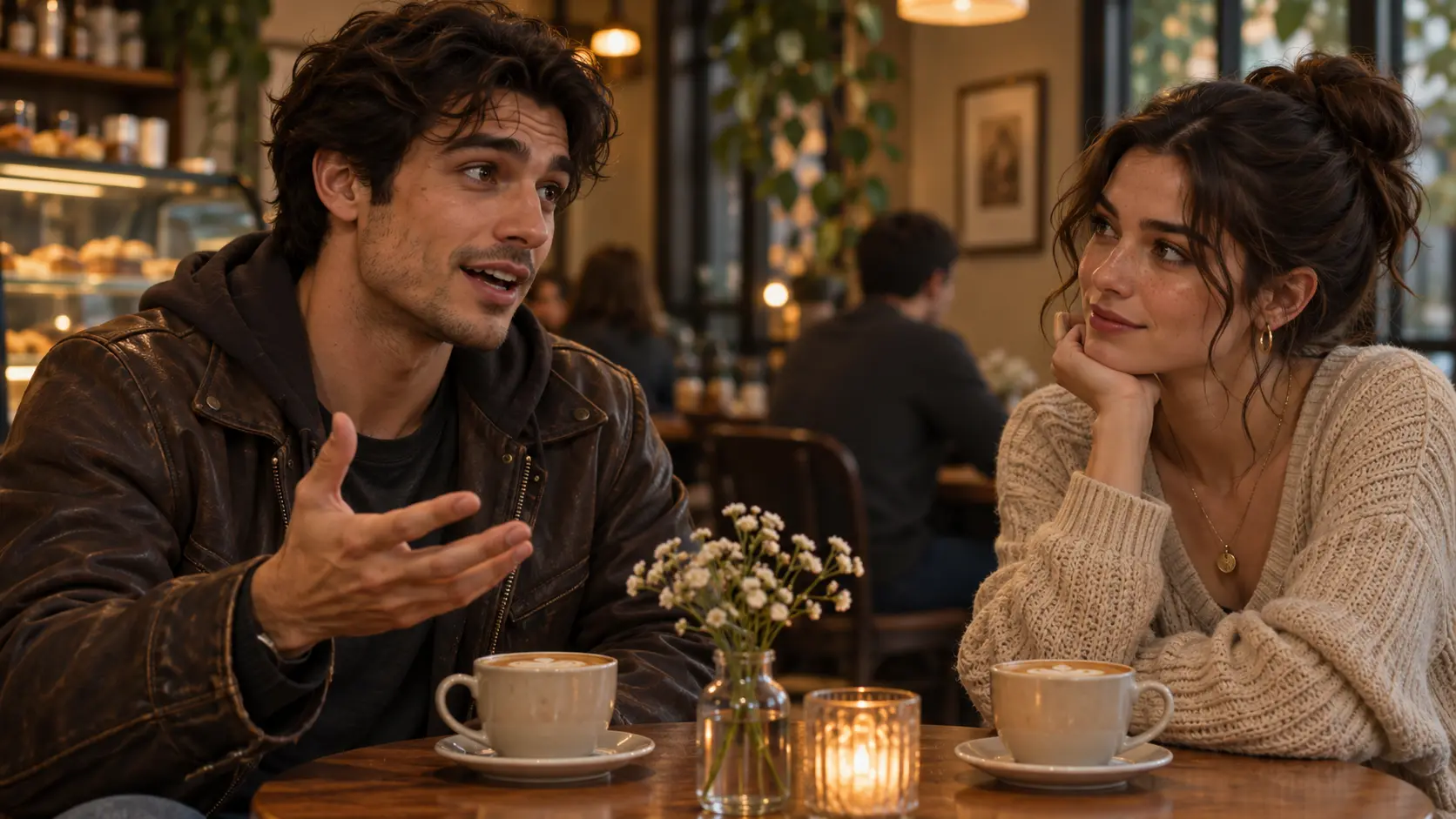
Use a character description, reference images, and a scene brief to explore how a recurring person or fictional host could appear in a short clip.

Pitch and Previsualization Shots

Pitch and Previsualization Shots

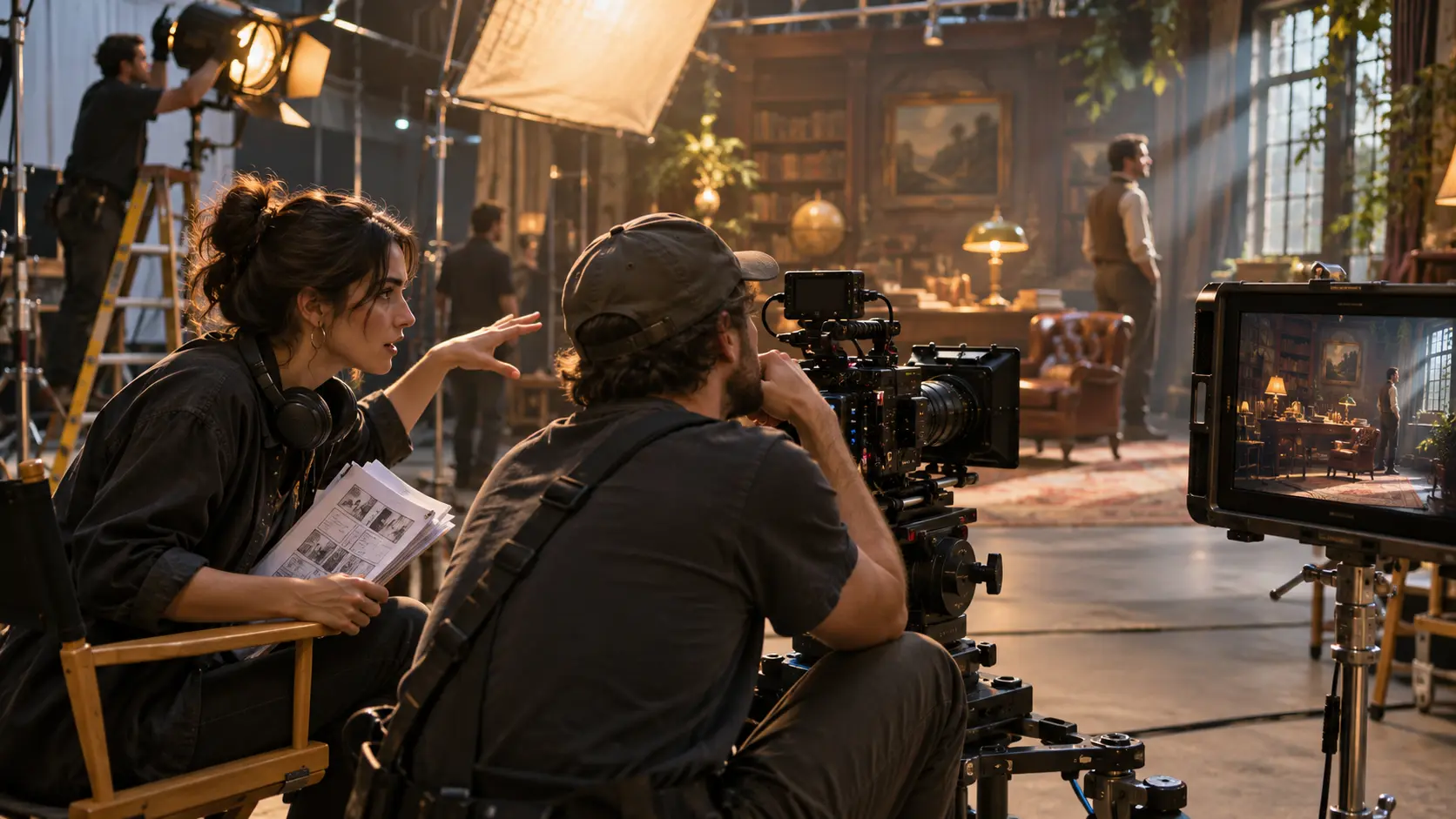
Help a client, collaborator, or production partner see a camera move, transition, or mood before committing to a full shoot.

Before and After Transformations

Before and After Transformations

Set an opening and ending frame in a supported workflow to explore product changes, style transitions, and visual reveals.

Why Creators Use Veo3.1 for Short Video Workflows

Multiple starting points

Begin with text, an image, a frame sequence, or supported references instead of forcing every idea into one input format.

Model specific controls

The generator exposes controls that match the selected Veo model and mode, making the next creative decision easier to see.

Short format choices

Choose from the available 4, 6, or 8 second durations when the selected model supports them.

Vertical and landscape output

Use the available 16:9 and 9:16 aspect ratios to prepare a clip for a web page, presentation, or vertical social post.

A downloadable result

Review completed generations in the workspace and download the result when a clip is ready to use.

A practical way to learn

Explore examples and prompt ideas before starting, then adapt the camera direction, subject, and setting for your own scene.

Veo3.1 AI Video Generator FAQ

Veo 3.1 is a family of AI video models available in the Veo Online generator. The selected model and input mode determine the controls that are available for the next short video.