Cinematic Story Scenes
Turn a written scene into a cinematic clip with a subject, setting, action, camera direction, and atmosphere. Use prompts for trailers, short-film concepts, mood pieces, and visual storytelling.
Turn text prompts or images into video clips with native audio and cinematic 4K quality — start with free Veo 3.1 AI Video Generator, no editing skills required.
Your generations will appear here
Describe a scene, a camera move, or a full story and Veo 3 turns it into a cinematic clip with matching native audio in seconds.
Cinematic AI Videos
Prompt
A POV time-freeze walk through a busy city street, with floating debris, frozen crowds, visible hands, and explosive time release.
Upload a photo, product shot, or character design and Veo 3 adds realistic motion while keeping faces, lighting, and style consistent.
Character Scenes
Reference images


Prompt
A stylish woman in a pink feathered dress walks along a sunny beach, with consistent identity, soft wind, and cinematic tracking.
Start with an idea, a product image, or a character reference. Create short video clips for the moments that need motion, sound, and a clear visual direction.
Turn a written scene into a cinematic clip with a subject, setting, action, camera direction, and atmosphere. Use prompts for trailers, short-film concepts, mood pieces, and visual storytelling.
Animate a product photo or describe a product moment from scratch. Create short product reveals, lifestyle clips, food shots, and social-ready ads that give an idea more movement and context.
Describe a character, action, setting, and spoken line in one prompt. Veo 3 models can generate video with dialogue, ambient sound, and sound effects in the same generation.
Create 9:16 clips for TikTok, Instagram Reels, and YouTube Shorts. Use a clear hook, a focused action, and a simple camera instruction to build a short-form video concept.
Control how your Veo video starts, moves, sounds, and follows references.
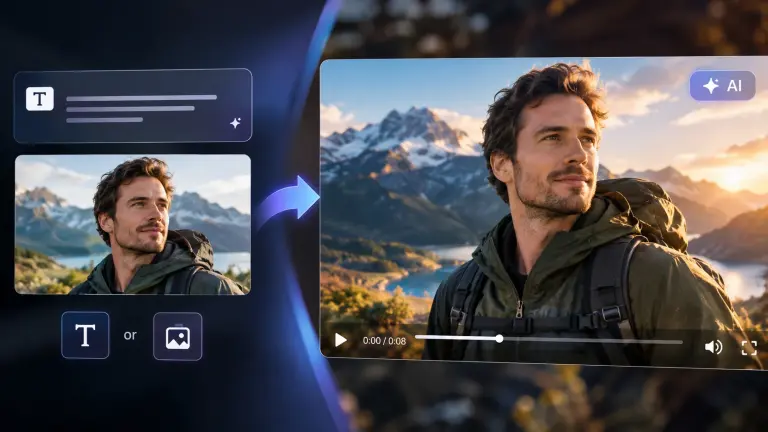
Start from a written prompt or a still image. This Veo 3 AI video generator supports both workflows, so you can create from whatever you already have. Use the Veo AI text to video generator to describe a scene in plain language, or the Veo AI image to video generator to animate a photo, product shot, or concept art. Switch between the two at any time, and keep every generation inside the same workspace.
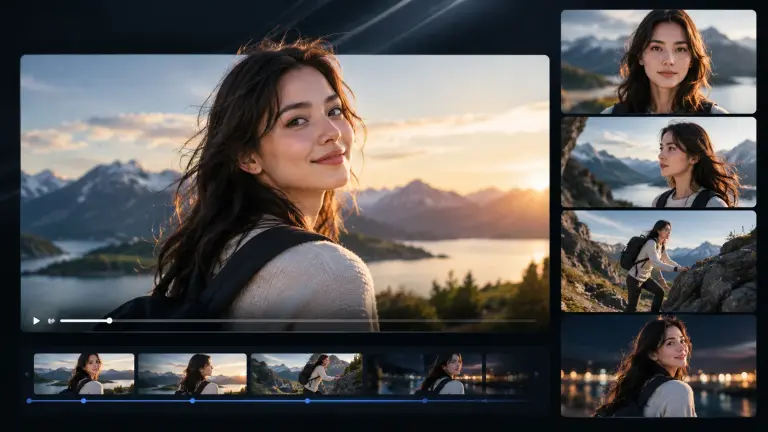
Veo 3 AI keeps faces, bodies, and scenes stable across shots, so characters look like the same person from the first frame to the last. Motion follows real-world physics instead of sliding or morphing, and lighting stays consistent when the camera moves. That consistency is what makes a Veo 3 video usable in a real project rather than a one-off demo clip.
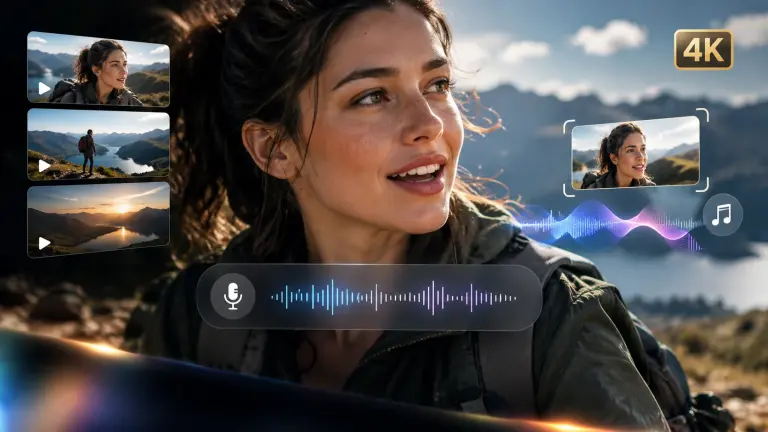
Veo 3 audio generates dialogue, sound effects, and ambient sound together with the visuals instead of adding them later. Speech lines up with mouth movement, background sound matches the scene, and music beds follow the pacing of each cut. The result exports in cinematic quality up to 4K, which removes an entire post-production step for creators publishing straight to social or ads.
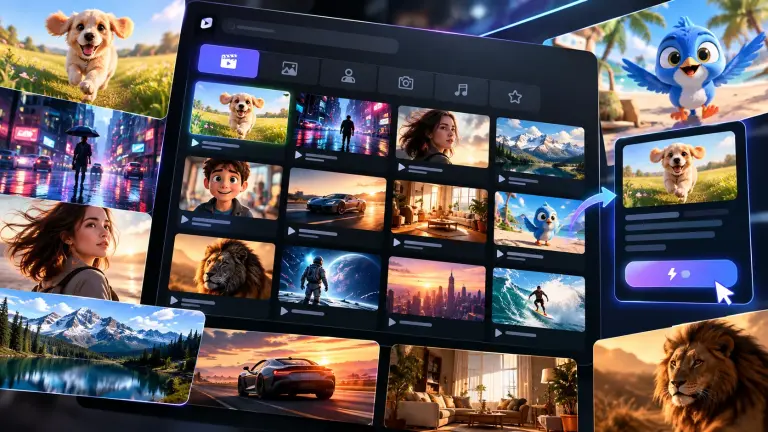
Skip the blank page. The built-in Veo 3 prompt library collects proven prompts and Veo 3 examples by scene, style, and camera move, so you start from a working recipe instead of writing from scratch. Open any example, load its prompt, and swap in your own subject — then edit it freely. It is the fastest way to learn what Veo 3.1 responds to.
Select a Veo model, then begin with text, an image, frames, or reference images based on the type of video you want to make.
Write what should appear, what happens, where it takes place, and how the camera should move. Add sound or dialogue when it matters to the scene.
Choose the available duration, aspect ratio, and resolution for your selected model. Generate the clip, review the result, and download the finished video to your device.
Pick a model based on the input controls and result you need for the next clip.
Use text, frames, or reference images when you want a flexible starting point for everyday video ideas and quick creative iterations.
Use text or first-and-last-frame inputs when your scene needs more deliberate framing and a controlled transition between two shots.
Use text, frames, or reference images to test ideas, explore visual directions, and create more variations before choosing a final result.
Use text or a first-frame image to create short video clips with native audio, ambience, sound effects, or dialogue.
Use text or a first-frame image when you want another option for a short prompt-led or image-led video concept.
Veo 3 is an AI video generation model that turns text prompts or images into short video clips. Depending on the selected model and workflow, you can also guide the result with frames, reference images, audio, and dialogue.
Go from a single prompt, image, frames, or references to a cinematic clip in seconds.